

What is Jupyter Notebook?
Jupyter Notebook is widely used for data analysis. I started to learn Data Science2–3 months ago and I used this tool to explore some datasets (a collection of data). It’s awesome!
Let’s see the definition from the docs.
The notebooks documents are documents produced by the Jupyter Notebook App, which can contain both code (e.g. Python) and rich text elements (paragraphs, equations, links, etc..).
The Jupyter Notebook App is a client-server application that allows editing and running notebook documents by a browser.
Here you can find more detailed information if you want to.
Shortcuts
As a developer, I like to use shortcuts and snippets as much as I can. They just make writing code a lot easier and faster. I like to follow one rule:
If you start doing some action with the mouse, stop and think if there is a shortcut. If there is a one – use it.
When I started using Jupyter Notebook I didn’t know that there are shortcuts for this tool. Several times, I changed my cell type from code to markdown and I didn’t know how. As you can guess this caused me a lot of headache. One day I just saw that there is a Help > Keyboard Shortcuts link in the menu bar. To my surprise, it turned out that Jupyter Notebook has a ton of shortcuts.
In this article, I’ll show you my favorite ones. Note that the shortcuts are for Windows and Linux users. Anyway, for the Mac users, they’re different buttons for Ctrl, Shift, and Alt:
Ctrl: command key⌘Shift: Shift⇧Alt: option⌥
First, we need to know that they are 2 modes in the Jupyter Notebook App: command mode and edit mode. I’ll start with the shortcuts shared between the two modes.
Shortcuts in both modes:
Shift + Enterrun the current cell, select belowCtrl + Enterrun selected cellsAlt + Enterrun the current cell, insert belowCtrl + Ssave and checkpoint
While in command mode (press Esc to activate):
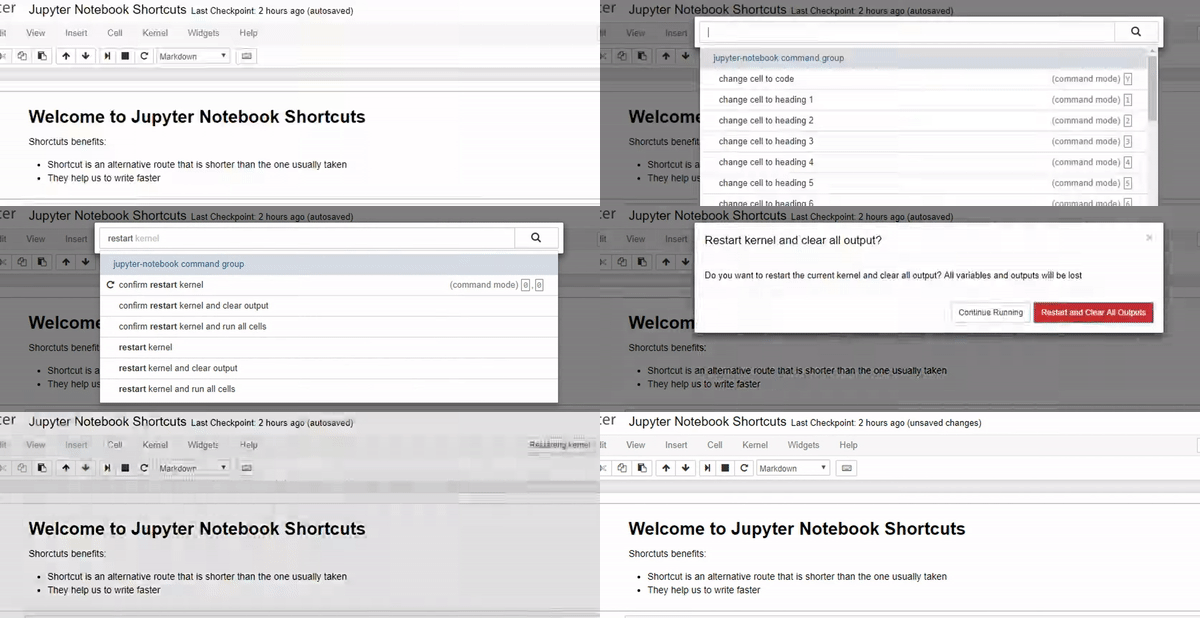
Entertake you into edit modeHshow all shortcutsUpselect cell aboveDownselect cell belowShift + Upextend selected cells aboveShift + Downextend selected cells belowAinsert cell aboveBinsert cell belowXcut selected cellsCcopy selected cellsVpaste cells belowShift + Vpaste cells aboveD, D (press the key twice)delete selected cellsZundo cell deletionSSave and CheckpointYchange the cell type to CodeMchange the cell type to MarkdownPopen the command palette.
This dialog helps you run any command by name. It’s really useful if you don’t know some shortcut or when you don’t have a shortcut for the wanted command.

Shift + Spacescroll notebook upSpacescroll notebook down
While in edit mode (pressEnter to activate)
Esctake you into command modeTabcode completion or indentShift + TabtooltipCtrl + ]indentCtrl + [dedentCtrl + Aselect allCtrl + ZundoCtrl + Shift + ZorCtrl + YredoCtrl + Homego to cell startCtrl + Endgo to cell endCtrl + Leftgo one word leftCtrl + Rightgo one word rightCtrl + Shift + Popen the command paletteDownmove cursor downUpmove cursor up
These are the shortcuts I use in my daily work. If you still need something that is not mentioned here you can find it in the keyboard shortcuts dialog (H). You can also edit existing or add more shortcuts from the Help > Edit Keyboard Shortcuts link in the menu bar. Clicking the link will open a dialog. At the bottom of it there are rules for adding or editing shortcuts. You need to use hyphens - to represent keys that should be pressed at the same time.