

When I write about a library or a new concept, I typically like to showcase its working via examples. The source of datasets that I use in my articles varies widely. Sometimes I create simple toy datasets, while on other occasions, I go with the established dataset sites like Kaggle and Google search. However, every time I need to showcase a concept, I have to go through the laborious work of copying the data from the source, saving it to my system, and finally using it in my development environment. Imagine my surprise when I discovered a built-in method in pandas created to address this issue. This method, aptly named as read_clipboard is an absolute savior when you want to try out some new function or library quickly, and in this article, we’ll learn how to use it.
Using pandas.read_clipboard() function
The read_clipboard() method of pandas creates a dataframe from data copied to the clipboard. It reads text from the clipboard and passes it to read_csv() which then returns a parsed DataFrame object.
Syntax
pandas.read_clipboard(sep='\\s+', **kwargs)
If you have worked with pandas’ read_csv(), the read_clipboard() method is essentially the same. The only difference is that the source of data in the latter comes from the clipboard buffer instead of a CSV file.
I have you covered incase you want a deep dive into some of the parameters of the
read_csvfunction in pandas.
Usage
Let’s now look at various ways of using this method. The main steps involved are:

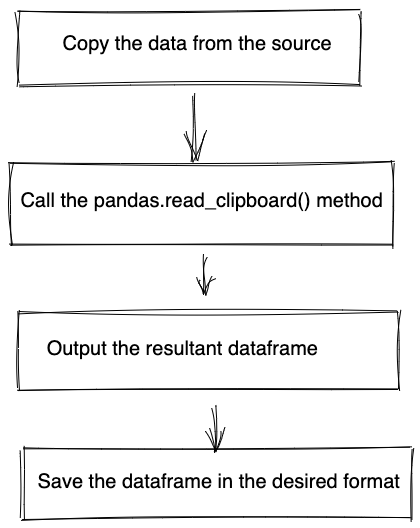
Steps involved | Image by Author
1. Copying data from Excel files
We’ll begin by copying some datasets from an excel file. This is the most common scenario encountered.

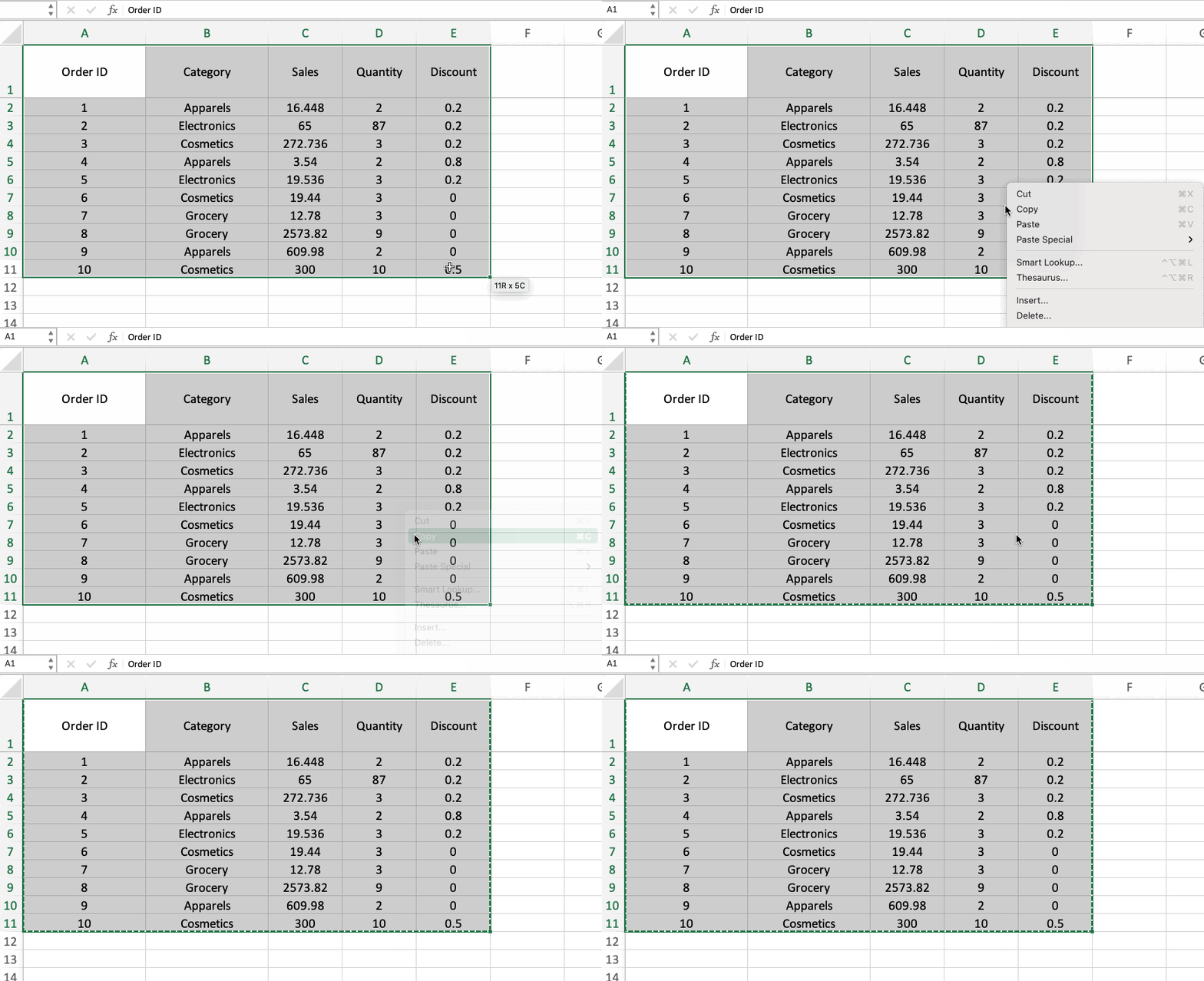
Copying data to clipboard | Image by Author
Now the data has been copied onto the clipboard. Next, we will navigate to a Jupyter Notebook(or any IDE) instance and type in the following code snippet:
import pandas as pd
df = pd.read_clipboard()
df

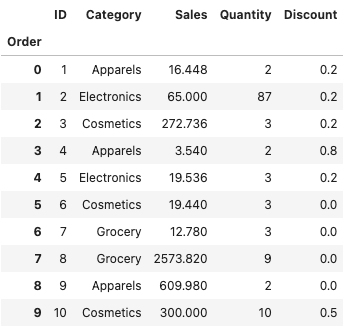
Dataframe obtained from the copied dataset | Image by Author
The copied dataset gets passed into the variable df and is now available in your environment. Below is a GIF that demonstrates the process clearly.


Working of pandas_read_clipboard() method | Image by Author
2. Copying data from CSV files
In case you have a CSV file, the steps remain the same. You will only need to make certain changes in the parameters of the function. Consider the following CSV data:
,Order ID,Category,Sales,Quantity,Discount
0,1,Apparels,16.448,2,0.2
1,2,Electronics,65.0,87,0.2
2,3,Cosmetics,272.736,3,0.2
3,4,Apparels,3.54,2,0.8
4,5,Electronics,19.536,3,0.2
5,6,Cosmetics,19.44,3,0.0
6,7,Grocery,12.78,3,0.0
7,8,Grocery,2573.82,9,0.0
8,9,Apparels,609.98,2,0.0
9,10,Cosmetics,300.0,10,0.5
Copy the above data and run the code below.
df = pd.read_clipboard(
    sep=",",
    header="infer",
    index_col=0,
    names=["Order", "ID", "Category", "Sales", "Quantity", "Discount"],
)df


Dataframe obtained from the copied dataset | Image by Author
We get the same dataframe as in Step 1. We just had to pass in the name of the columns and information about the header and index column.
3. Copying data from Webpages
You can also copy the data from any source, including a web page, as long as it is structured in the form of a dataframe. Here is an example of copying data from a StackOverflow example and importing it into a dataframe.

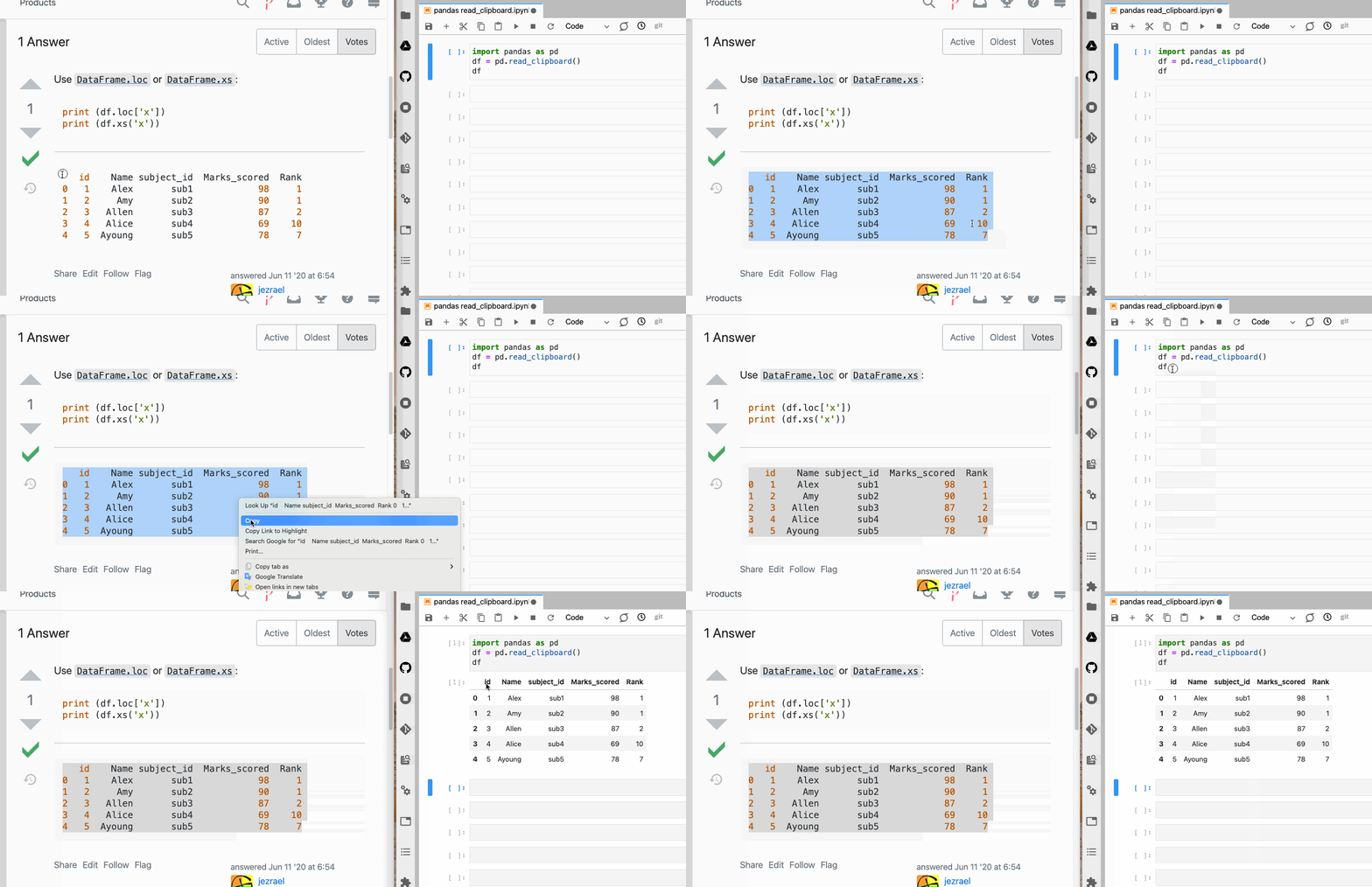
Copying dataframe from a webpage | Image by Author
Saving data
We can use the clipboard data to save the dataset for future use in the desired format.
df.to_csv('data.csv')
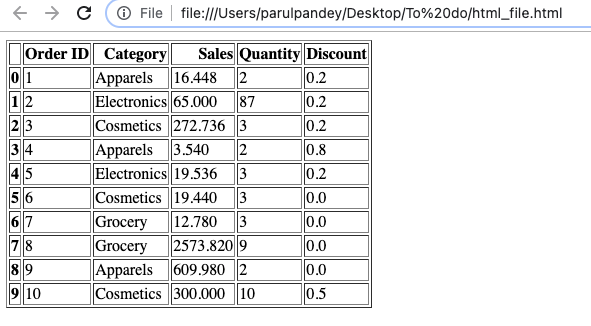
You can also save the data in HTML format to display the data as HTML tables.
df.to_html('data.html')

Conclusion
Now that you’ve learned about the read_clipboard method, you’ll definitely want to try it out. I’m sure if you like creating data-related tutorials, this will come in handy. You can also check out other blogs that I have written on pandas’ functionality. For instance, this one helps you create interactive plots directly with pandas, and this one is a hands-on guide to ‘sorting’ dataframes in Pandas.