





Introduction on PySpark’s DataFrame
From this article, I’m starting the PySpark’s DataFrame tutorial series and this is the first arrow. In this particular article, we will be closely looking at how to get started with PySpark’s data preprocessing techniques, introducing what PySpark’s DataFrame looks like, and performing some general operations on the same i.e. from starting the PySpark’s session to dealing with data preprocessing technique using PySpark.
Starting PySpark Session
Here we will be starting our Spark session by importing it from the pyspark.sql package, and then we will setup the SparkSession by giving it a name
from pyspark.sql import SparkSession

data_spark = SparkSession.builder.appName('DataFrame_article').getOrCreate()

data_spark
Output:
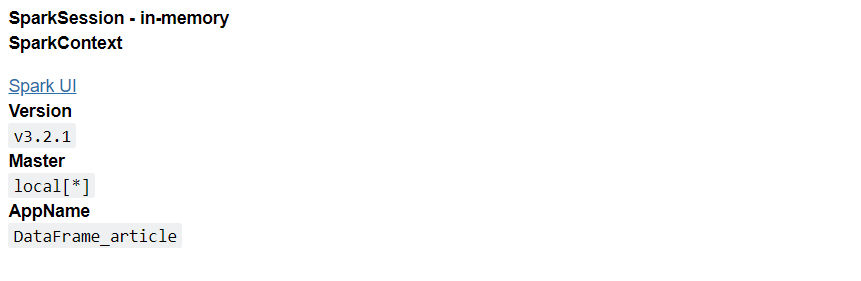
Code breakdown
- Firstly we have imported the
SparkSessionfrompyspark.sqlobject. - Then by using
getOrCreate()andbuilderthe function, we created a SparkSession and stored it in a variable. - At last, we saw what is there in the
data_sparkvariable.
Note: This is not the detailed illustration of ” how to start spark session”, and if you are not able to get every bit of it, then I’ll recommend going through my previous article on- Getting started with PySpark using Python
Those who already understood can jump to the main section of the article.
Reading the Dataset
Now let’s read our dataset and look at what it looks like and how PySpark reads it differently with different approaches and functions.
data_spark.read.option('header','true').csv('/content/sample_data/california_housing_train.csv')Output:
DataFrame[longitude: string, latitude: string, housing_median_age: string, total_rooms: string, total_bedrooms: string, population: string, households: string, median_income: string, median_house_value: string]
read.option.csv: This complete set of functions is responsible for reading the CSV type of file using PySpark, where read.csv() can also work but to make the column name as the column header, we need to use option()as well
Inference: Here in the output, we can see that the DataFrame object is returned which shows the column name and corresponding type of columns.
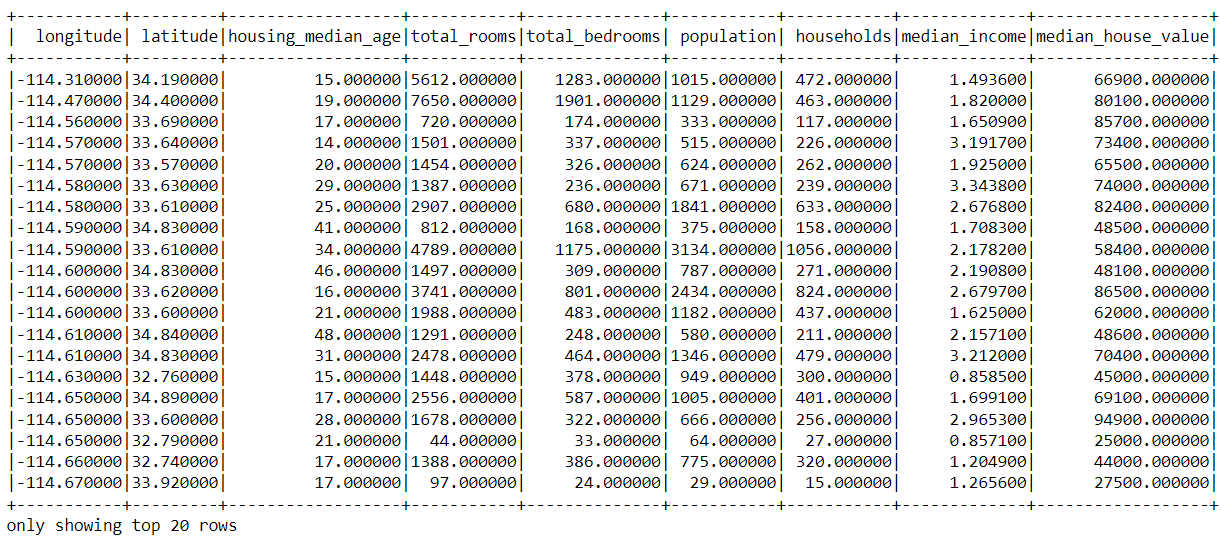
Now let’s see the whole dataset, i.e. column and records, using the show() method.
df_spark = data_spark.read.option('header','true').csv('/content/sample_data/california_housing_train.csv').show()
df_spark
Output:
Checking DataTypes of the Columns
Now let’s check what type of data type the columns of our dataset holds and are these columns consisting anynull values or not using the printSchema() function.
df_pyspark = data_spark.read.option('header','true').csv('/content/sample_data/california_housing_train.csv')
df_pyspark.printSchema()
Output:
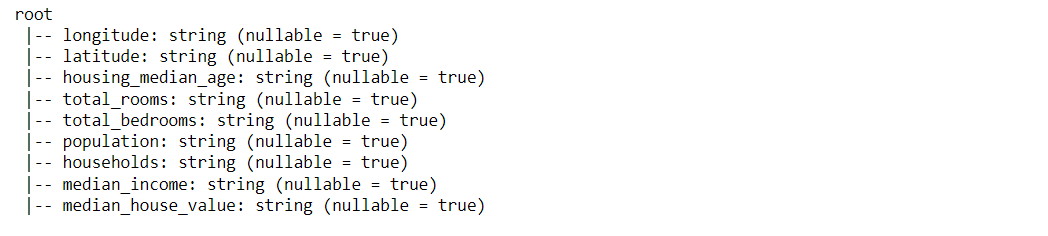
Inference: With the help of the print schema function, we can notice that it returned ample information related to columns and their data types.
But, Hold on! We can see that every column shows the string value, but that is not true, right? Answer: This glitch is the default setting of the print schema() function as it will always return the column type as String until we fix it.
So, Let’s fix this issue first!
df_pyspark = data_spark.read.option('header','true').csv('/content/sample_data/california_housing_train.csv', inferSchema=True)
df_pyspark.printSchema()
Output:
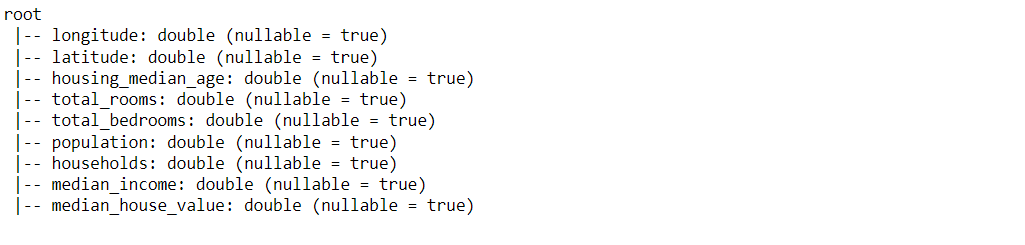
Inference: Now, we can see the valid data type corresponding to each column with just a minor change of adding one more argument inferScehma = True Which will change the default setting of printSchema(). One more thing to keep a note is nullable = True which certainly means that the column might have null values.
There is one more way of checking the Data types of the columns which are pretty similar to what we used to do in the case of the pandas DataFrame. Let’s see that approach as well!
df_pyspark.dtypes
Output:
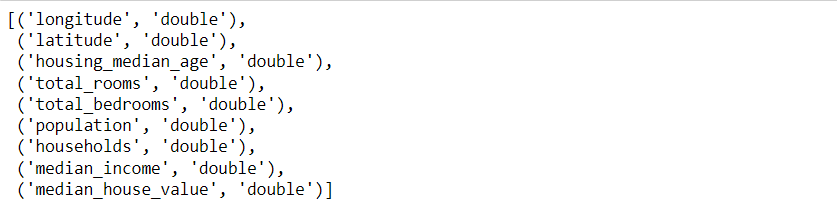
Inference: Here also, it returns the same output as in the previous approach but this time in a different format as it returns the output in the form of a “list of tuples”.
Column Indexing
First, let us see how we can get the name of each column so that, based on that, we can perform our column indexing and other operations.
df_pyspark.columns
Output:
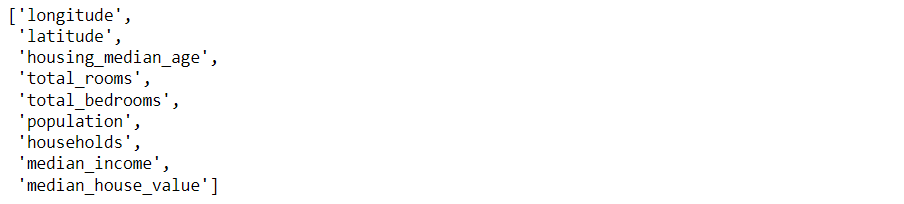
Inference: By using the columns the object, we can see the name of all the columns present in the dataset in the list object
Now let’s understand how we can select the columns. For instance, let’s say that we want to pluck out the total_rooms column only from the dataset.
df_pyspark.select('total_rooms').show()Output:
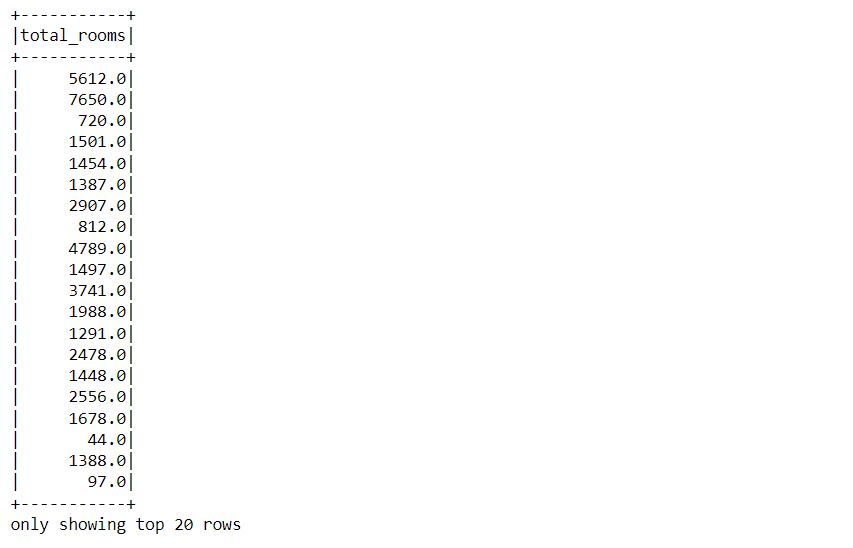
Inference: Here, with the help of select the function, we have selected the total_rooms column only, and it returned that column as DataFrame of PySpark.
So we have plucked out only a single column from the dataset, but what if we want to grab multiple columns. So let’s have a look at it!
df_pyspark.select(['total_rooms', 'total_bedrooms', 'median_income']).show()
Output:
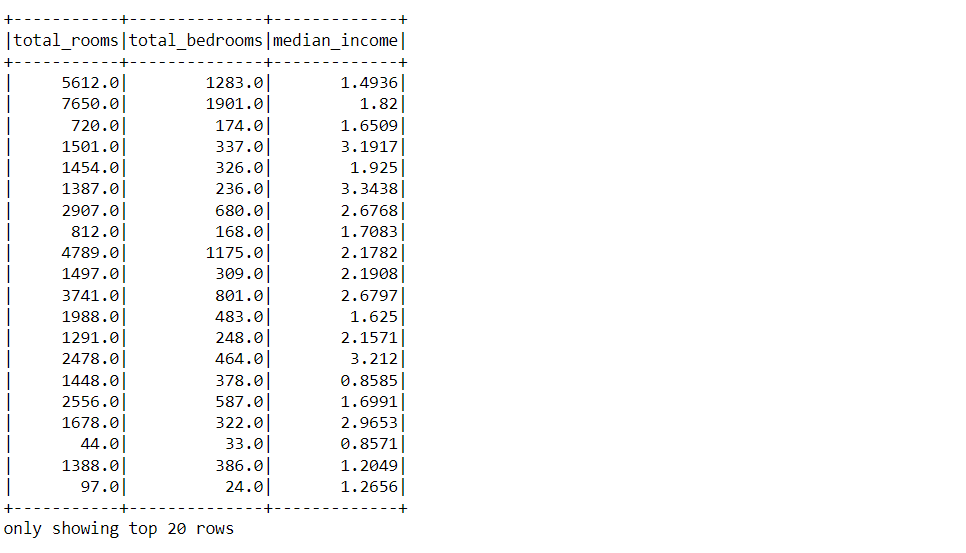
Inference: Now, we have passed the multiple column names in the argument of select method but in the form of list. The same logic as we used to perform in pandas DataFrame, and with just this minute change, we can grab out multiple columns from our dataset based on the requirement.
Describe Function in PySpark
Now let’s see how the describe() function works in PySpark though we also know about the panda’s describe function and the role of the PySpark’s describe() function is also the same.
df_pyspark.describe().show()
Output:
.png)
Inference: So here is the result from the described function of PySpark. By looking at the output, one who is familiar with using the pandas describe function can consider it the spitting image of the pandas DataFrame because it shows the same statistics in the same way.
In this function, you can find the below-mentioned detail of the dataset:
- count: Where you find the total number of records present in each column.
- mean: Here, one can see the mean of the column values.
- std-dev: It will return the standard deviation of the column values.
- min: This will return the minimum value present in the column.
- max: This will produce the maximum value currently in the queue.
Adding Columns in PySpark DataFrame
Now it’s time to learn how we can create a new column in the PySpark’s Dataframe with the help of the with column() function.
df_pyspark = df_pyspark.withColumn('Updated longitude', df_pyspark['longitude']+1.2)
df_pyspark.show()
Output:
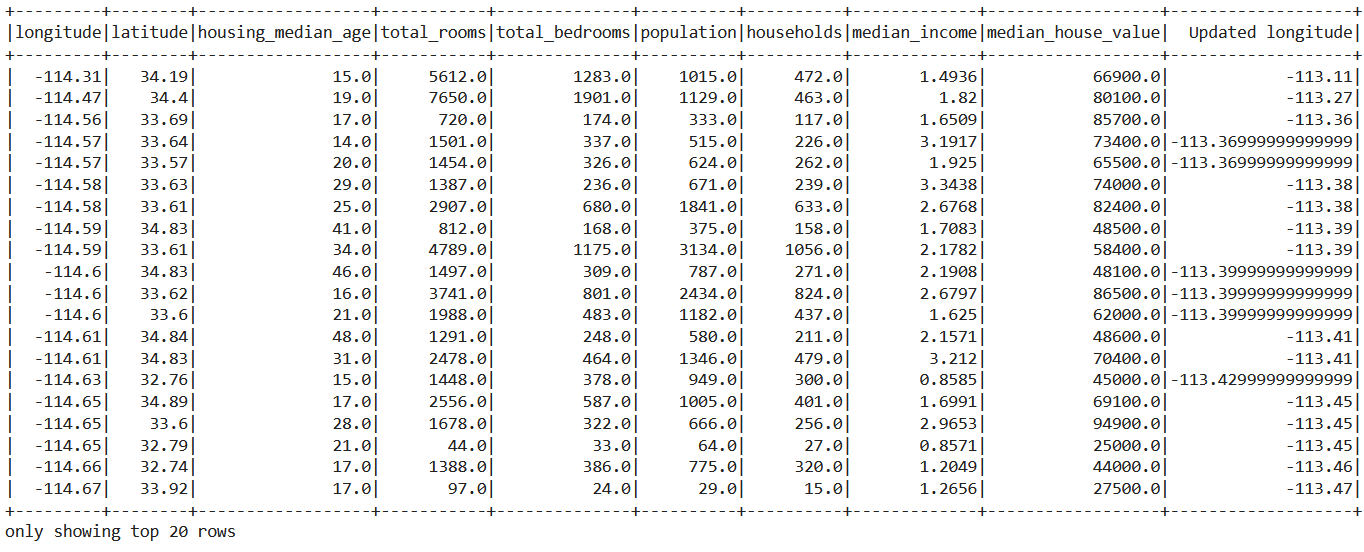
Inference: From the above output, we can see that the new column is updated in the DataFrame as “Updated longitude”.
Let’s discuss what we did to add the columns:
- We used the
withcolumn()function to add the columns or change the existing columns in the Pyspark DataFrame. - Then in that function, we will be giving two parameters
- The first one will be the name of the new column
- The second one will be what value that new column will hold.
Dropping Columns in PySpark DataFrame
So by far, we have learned about adding the column, but here we will learn to drop specific columns because in the data preprocessing pipeline we need to drop the columns from the dataset which are not relevant to our requirements.
Dropping the column from the dataset is a pretty straightforward task, and for that, we will be using the drop() function from PySpark.
df_pyspark.drop('Updated longitude').show()Output:
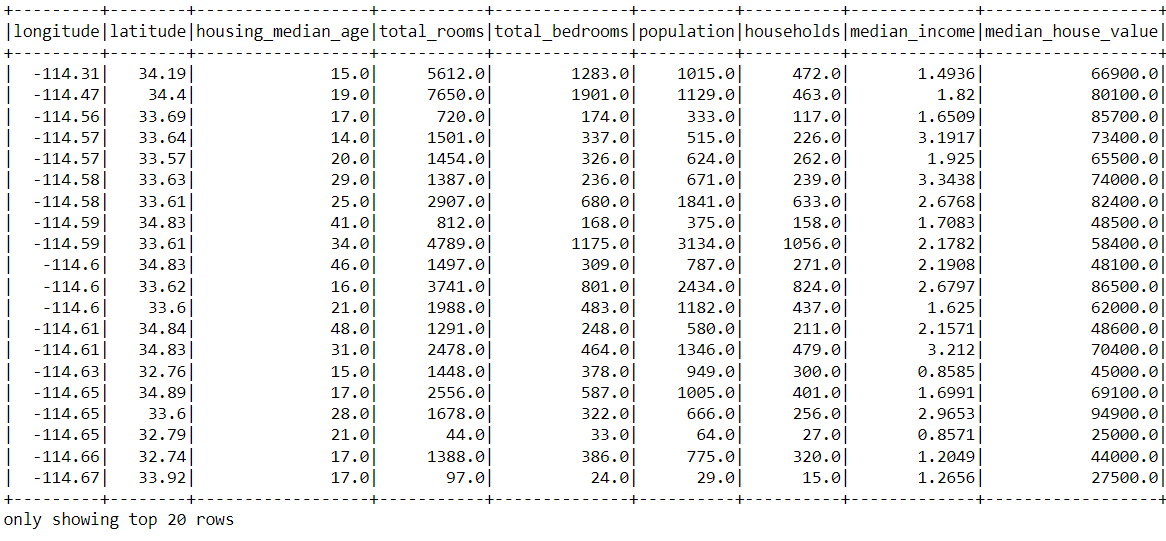
Inference: In the output, we can see that the “Updated longitude” column doesn’t exist anymore in the dataset. We noticed that we gave the column’s name in the parameter and got that column dropped from the dataset.
Note: If we want to drop multiple columns from the dataset in the same instance, we can pass the list of column names as the parameter.
Renaming the Column
After learning to add the new columns and dropping the irrelevant column, we will be looking at how to rename the columns using the withColumnRenamed() function.
df_pyspark.withColumnRenamed('population', 'population per capita').show()Output:
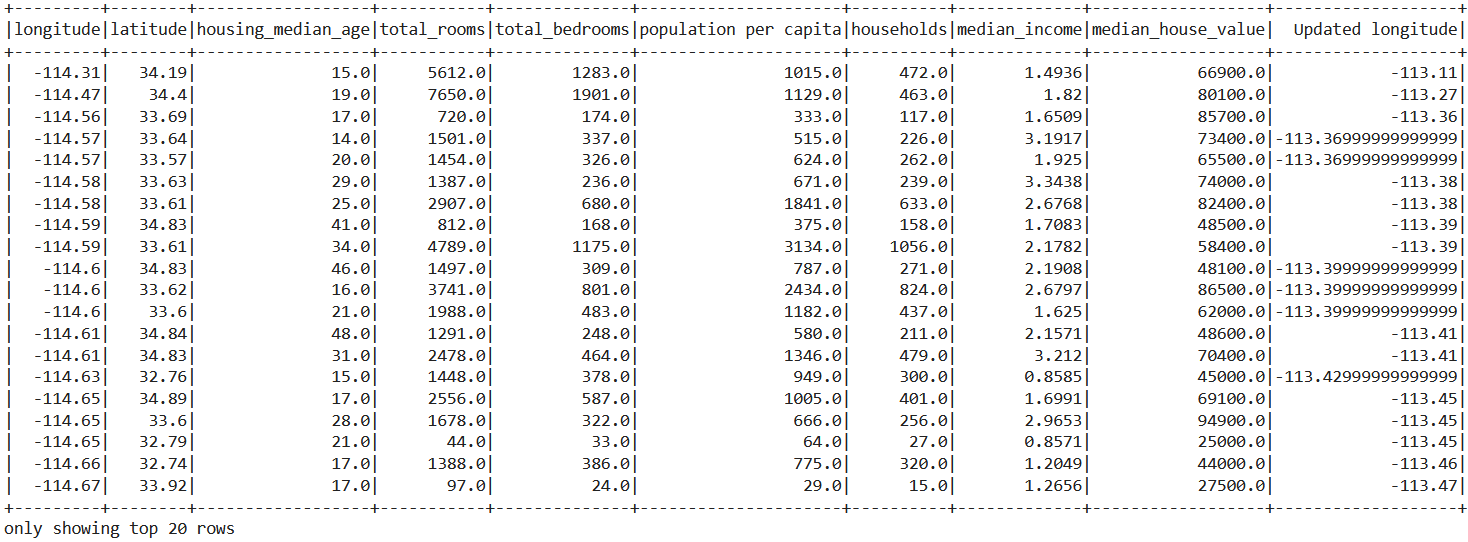
Inference: From the above output, we can see that the “population” column is renamed to “population per capita” by using with columnRenamed() a function wherein one parameter we need to pass the column name to be renamed, and the following parameter will be the updated name.
Conclusion on PySpark’s DataFrame
So finally, it’s time to conclude this article and let’s quickly discuss everything that we have covered in this article with a short description of the same.
- The very first thing that we learned is how to start the spark session, as this is the mandatory step to go with PySpark.
- Then we learned how to get information regarding the dataset columns by using the printSchema() function, columns object, and describe function().
- Then, at last, we also looked at how to manipulate the dataset’s Schema when we saw how to add, drop and rename the columns.


