





Introduction
Jupyter Notebook is an easy-to-use, open-source tool for web-based interactive computing. The Jupyter Notebook supports more than 40 different programming languages like R, Python, Java, etc. Therefore, most data science professionals tend to use Jupyter Notebooks to create and share documents, including code, equations, visualizations, computational outputs, markdown text, etc.
The basic Jupyter Notebook environment is more befitting for general training and educational machine learning/deep learning model development requirements. However, the vanilla environment lacks certain features which makes it tedious to handle complex codes. In such a situation, Jupyter Notebook extensions come in handy to make the above task easier.
Why use Jupyter Extensions?
These are simple add-ons that improve the Jupyter Notebook environment’s core features. These extensions can autoformat the code, provide information while the cell is running, and display a browser message when code execution is finished. Written in JavaScript, these extensions are presently supported in the Jupyter Notebooks environment only. It is important to note that these extensions are not supported in Jupyter Lab.
Jupyter Notebook Extensions
All the extensions mentioned in this article are available through an open-source package, ‘jupyter_contrib_nbextensions.’ This python package includes multiple unofficial extensions provided by the community that extends the capability of the Jupyter Notebook. As mentioned earlier, since most of the extensions are written in Javascript, these can be run locally in the browser.
We will run the following code in the command prompt to install these Jupyter Notebook extensions.
pip install jupyter_contrib_nbextensions
Next, run the following code to add the nbextensions files into the Jupyter server’s search directory.
jupyter contrib nbextension install
After installing, open Jupyter Notebook. You will see a new tab, “Nbextensions” will appear in the menu (as shown in the image).
When you click it, you will see a list of available extensions that you can use to increase your productivity of Jupyter Notebook. If the Nbextensions menu is not displayed, restart the Jupyter Notebook to reload it.
As you can see, there are a variety of extensions available for specific purposes like code formatting, cell manipulation, auto-completion of code, spell checks, language translator, etc. These extensions can improve the productivity of your Jupyter Notebook.
Now let us explore and test 11 extensions from the Nbextensions package that can refine the performance of your existing Jupyter Notebook. These are not necessarily in any specific order.
1. Move selected cells
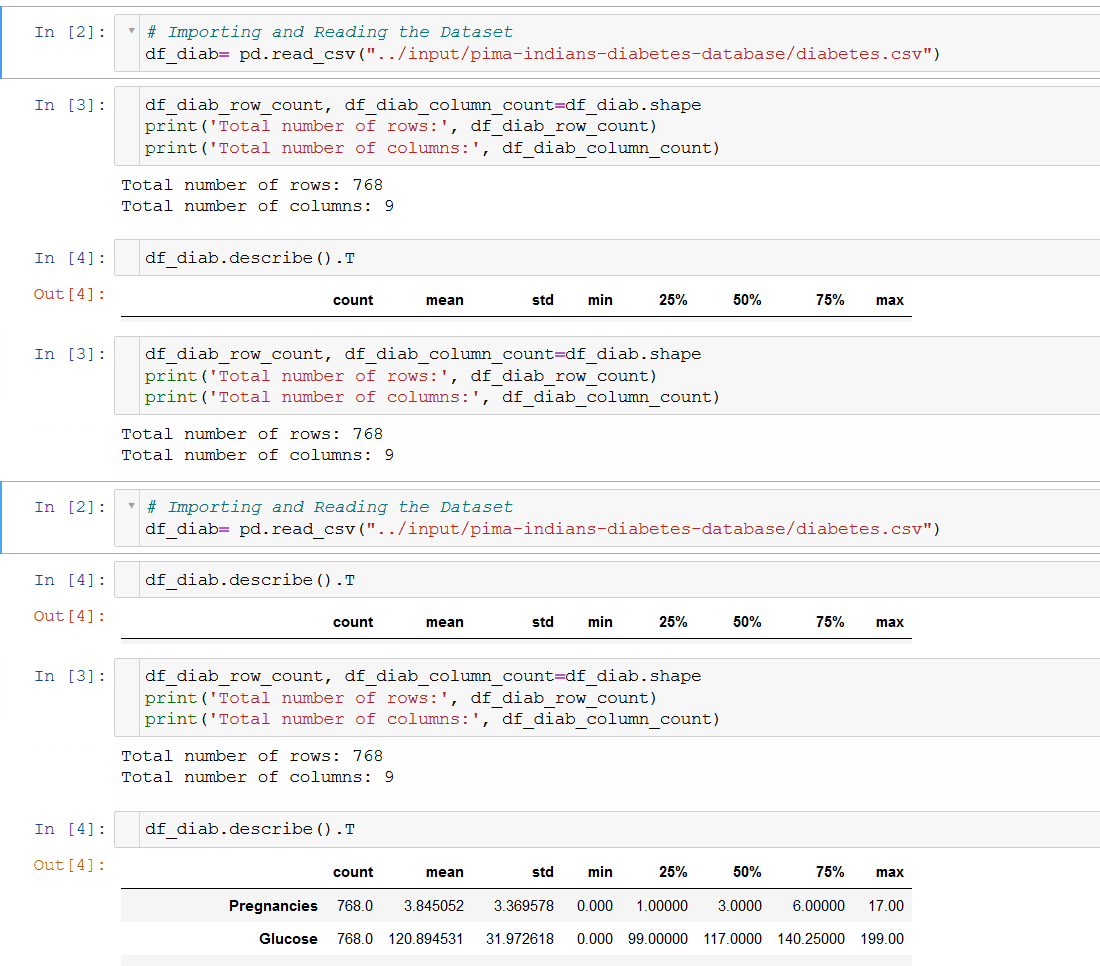
This simple and fast extension allows you to move selected cells using the ‘Alt-up’ and ‘Alt-down’ keyboard shortcuts. Moving cells or groups of cells with simple keystrokes is more useful. To activate it, select the “Move selected cell” checkbox.
2. Hinterland
This extension is a good choice for people who struggle to write code in Jupyter Notebook due to the lack of an autocompletion feature. By selecting the ‘Hinterland’ box, autocompletion is activated in Jupyter Notebook and you will be able to write code quickly.

3. Snippets Menu
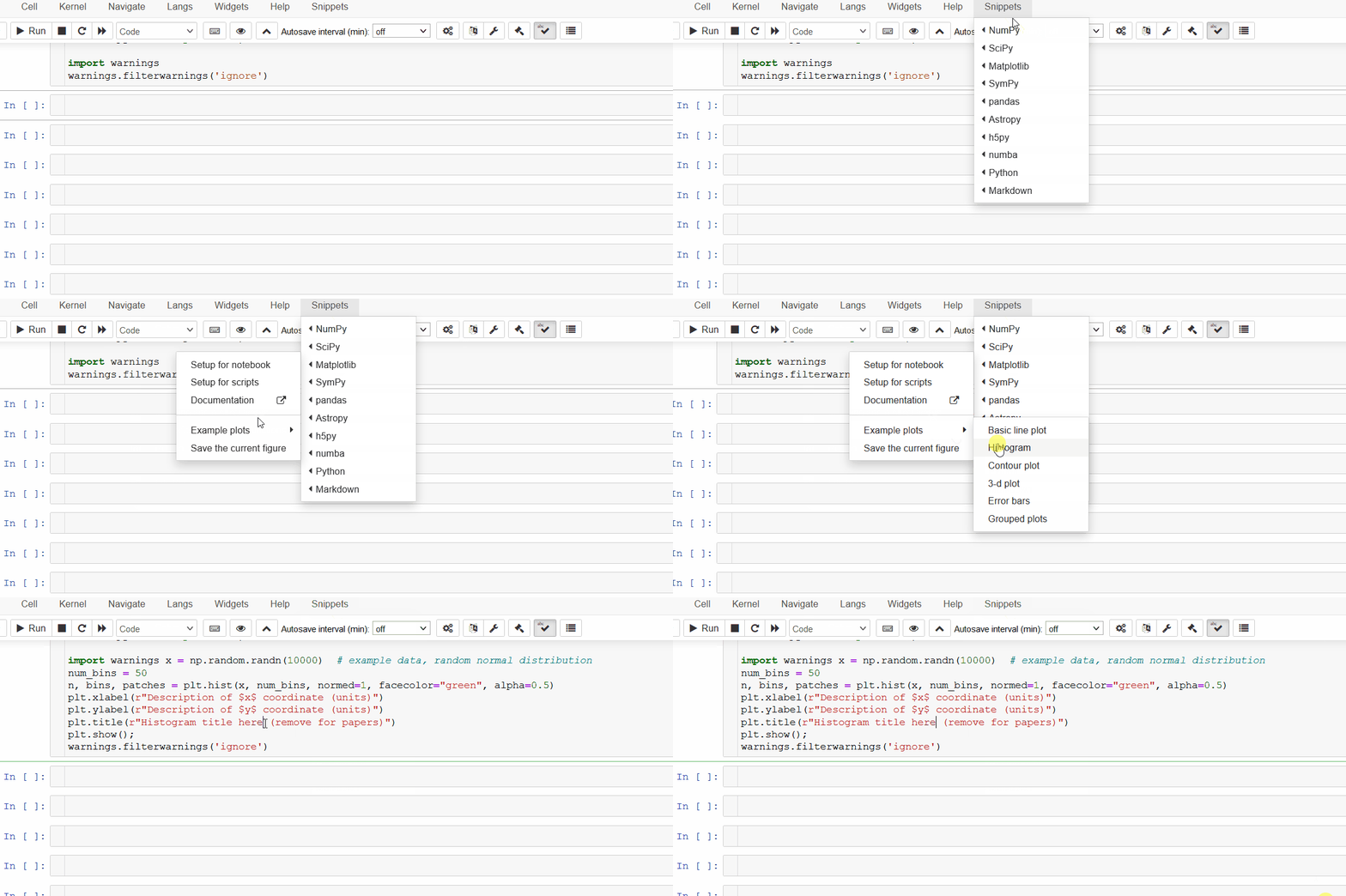
This extension includes ready-to-use code snippets for several Python libraries like Matplotlib, Numpy, SciPy, etc. that allow adding relevant code snippets with a single click. Using Snippets Menu, we don’t have to look through the entire documentation to search for the syntax since all the necessary syntax is available in one place with this extension.
4. Runtools
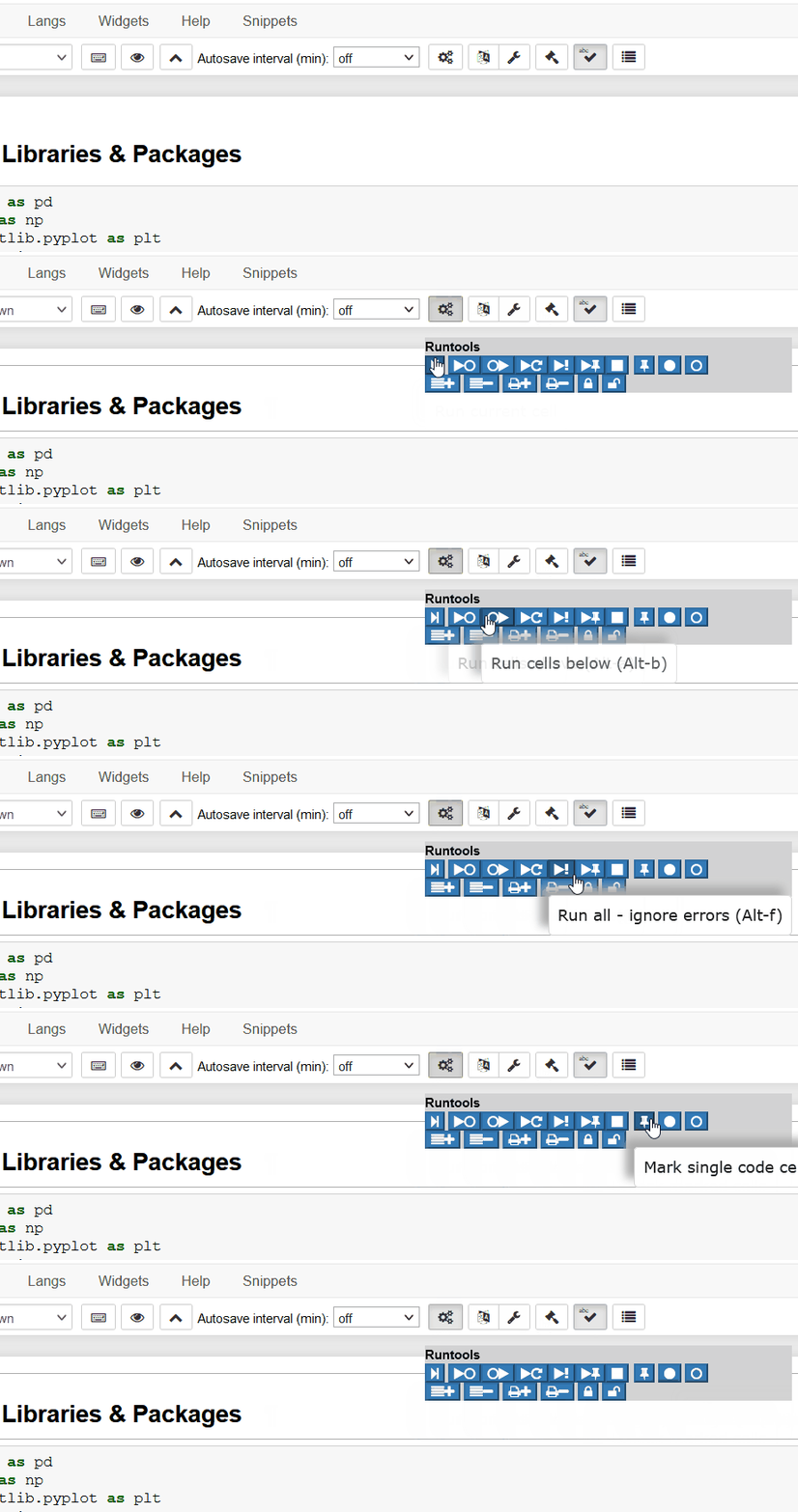
Runtools is another nice extension for the IPython notebook, which makes available additional functions for executing code cells. Check the “Runtools” box to activate it. You’ll notice the following symbol on the toolbar when you activate it.

When you click it, a floating toolbar will be seen on the screen showing the following different buttons for code execution.
5. Tree Filter
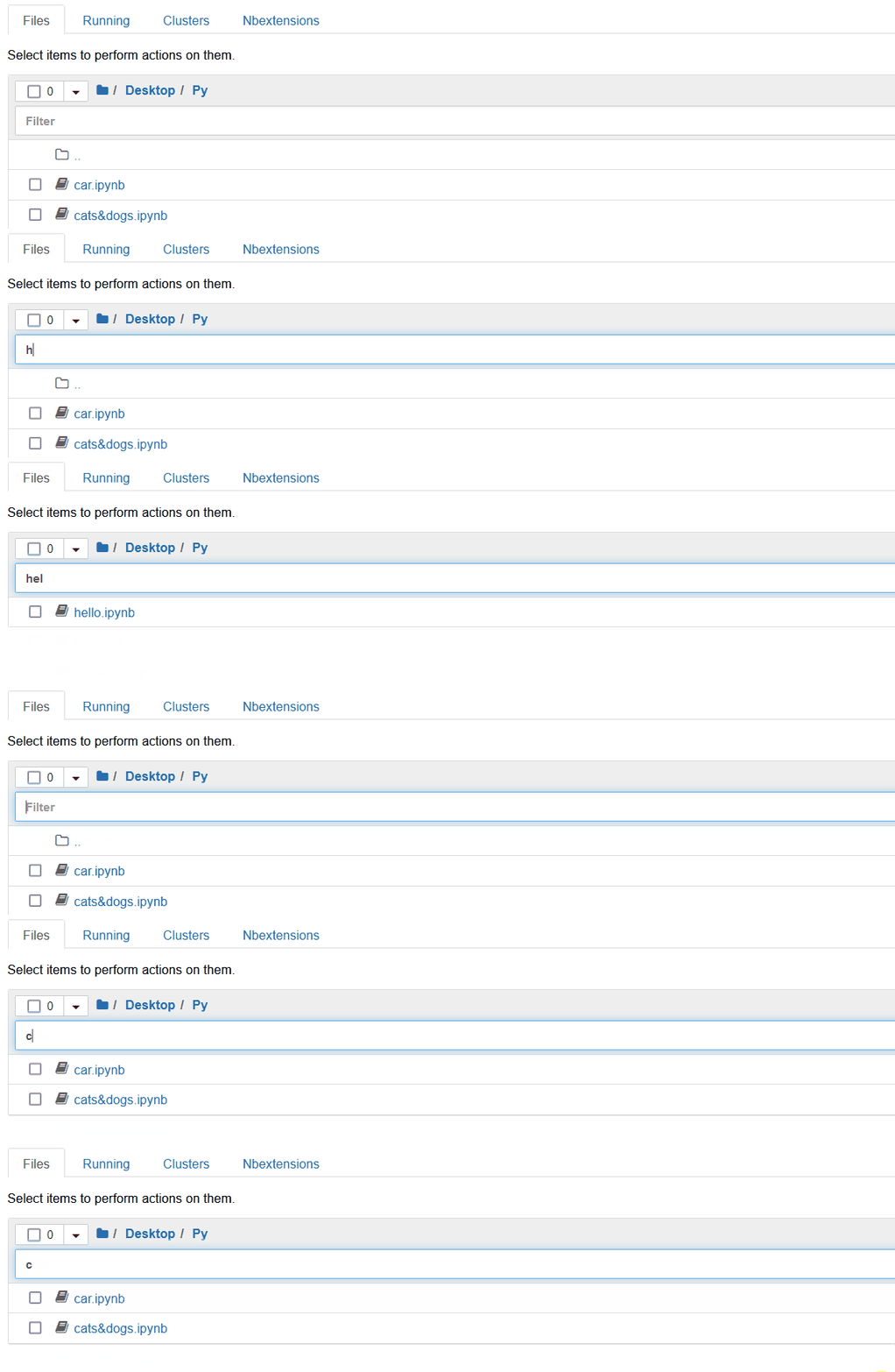
This extension allows you to filter the Jupyter notebook file tree (or dashboard) page by filename.
6. Hide input and Hide input all
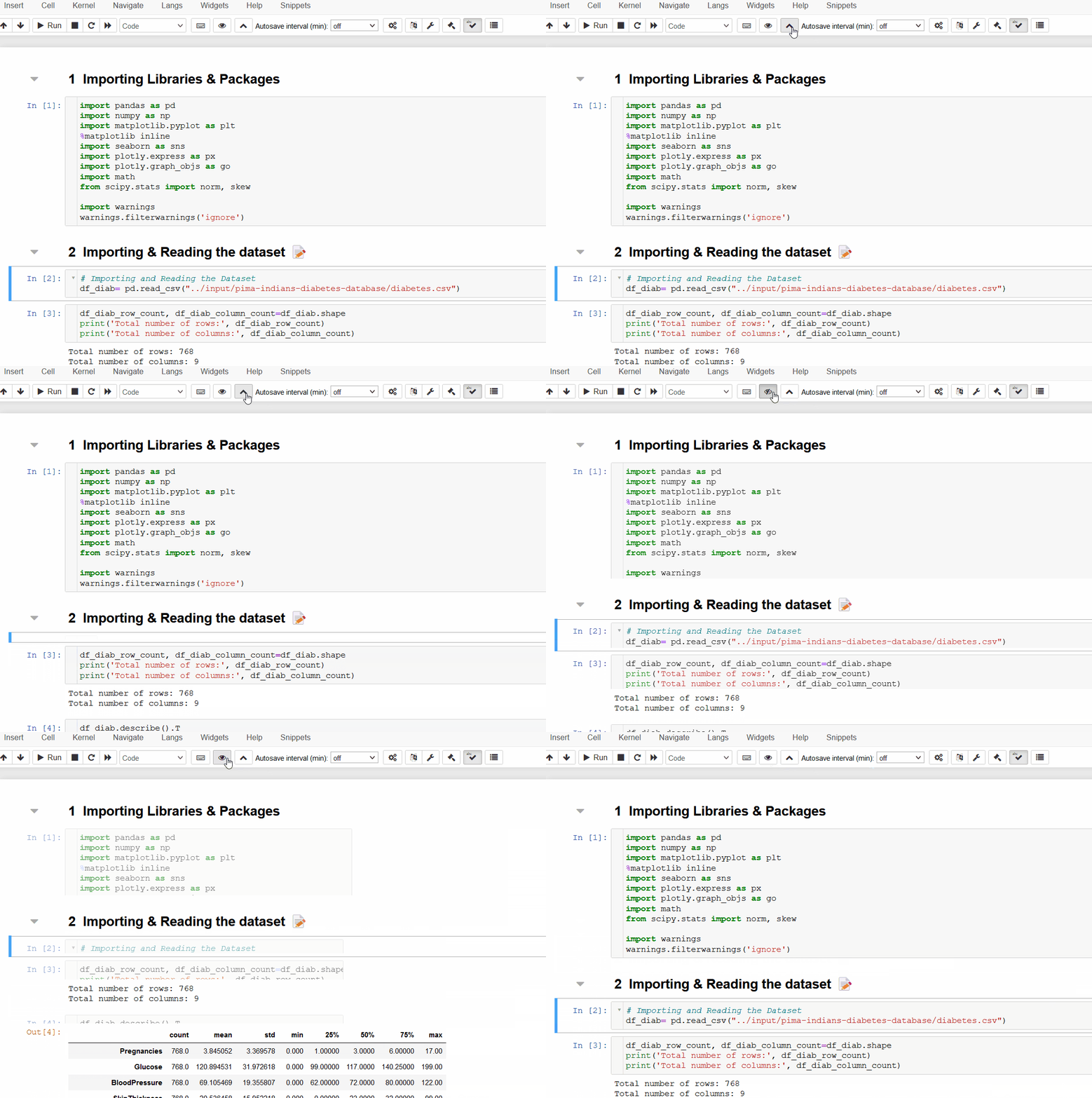
Hiding individual cell inputs or all inputs can be done by selecting the “Hide input” and “Hide input all” checkboxes, respectively. After refreshing your notebook, the following icons will be seen on the toolbar.

The icon on the left will help you hide the code of all code cells, and the second icon will only help you hide the code of specific cells.
7. Table of Contents (2)
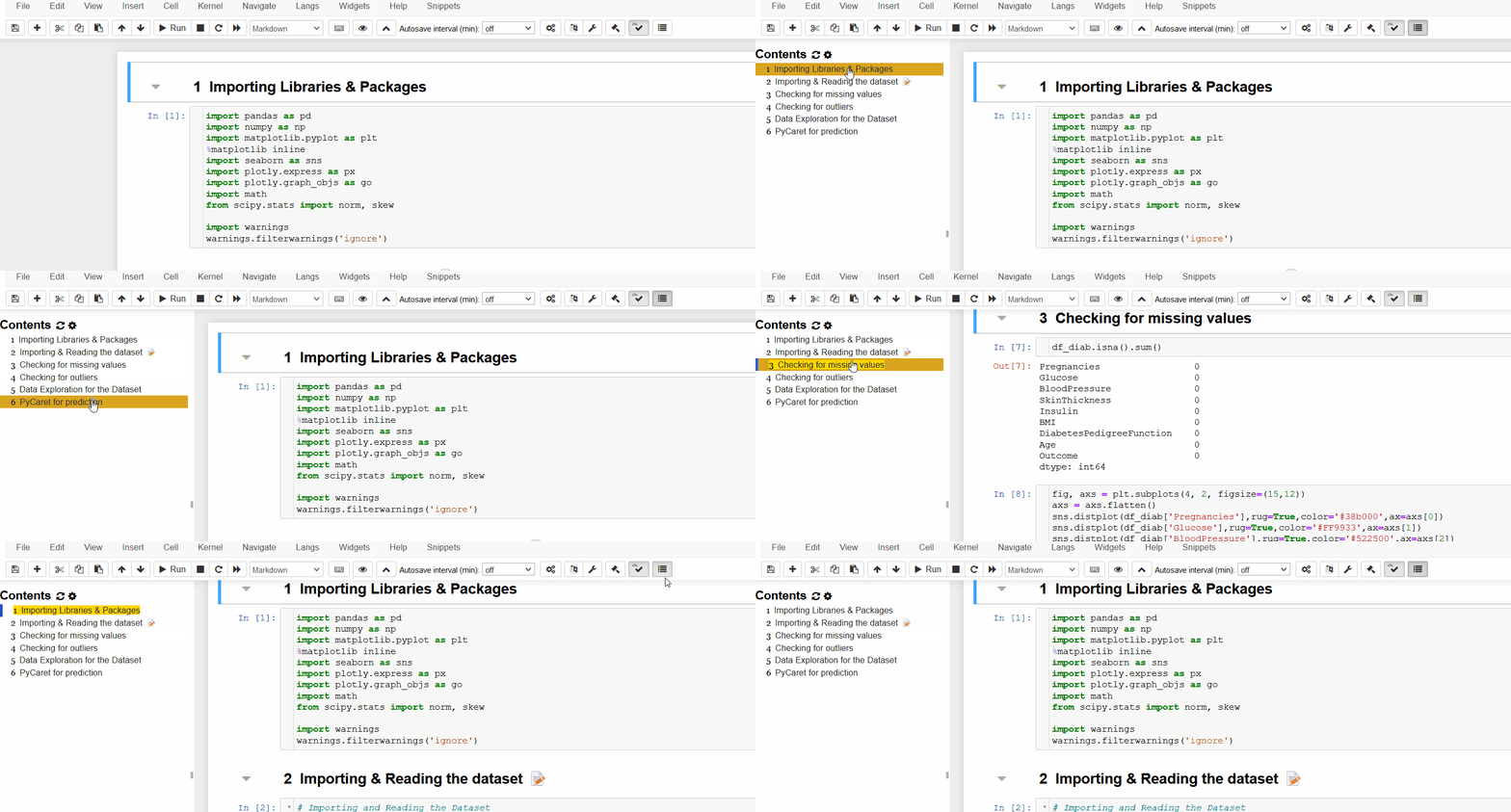
Select the option “Table of Contents (2)” inside Nbextensions to enable this extension in your Jupyter Notebook.
The following symbol will be seen in the toolbar after refreshing the notebook.

Navigating through your notebook will become tough after writing a lengthy code. The “Table of Contents (2)” or “toc2” extension gathers all the headings available in a Jupyter Notebook and shows them in the sidebar, making browsing easier.
8. Spellchecker
As the name indicates, the Spellchecker extension helps highlight spelling errors in markdown cells in your notebooks. It is handy when sharing a notebook on different coding platforms.
Select the option “spellchecker” to activate this extension in your Jupyter Notebook.
The following symbol will be seen in the toolbar after refreshing the notebook.

The spelling errors will get highlighted in red using this extension.

9. Codefolding
This extension allows you to fold code in code cells. Select the option “Codefolding” to activate this extension in your Jupyter Notebook. After refreshing the notebook, the following symbol will be seen on the left side of the code cell.
To fold the code, click on the symbol or use the shortcut Alt+F.

10. Collapsible Headings
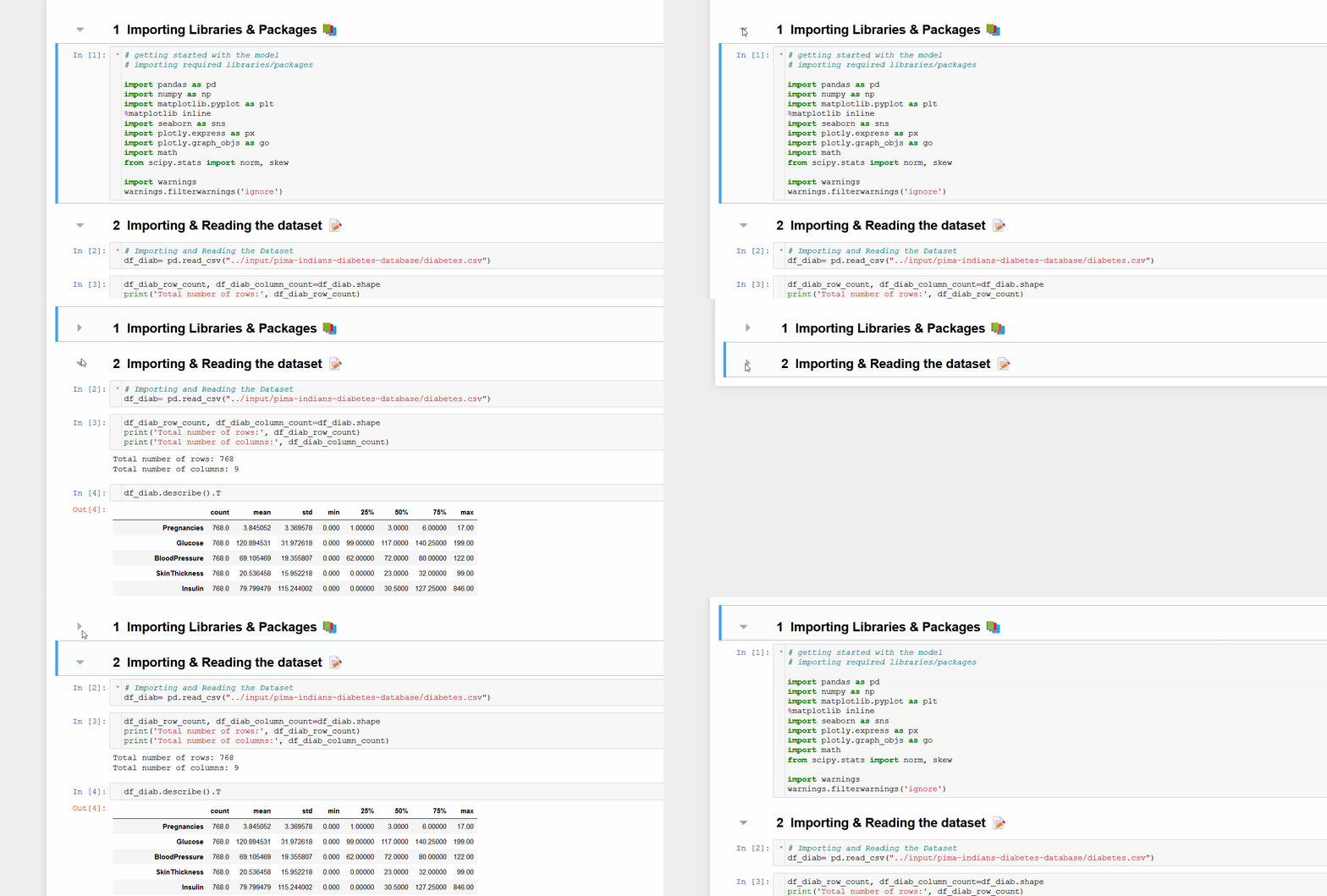
It is possible to have collapsible sections divided by headers in your notebook. When you click it, the markdown header cell collapses. Check the “Collapsible Headings” box to activate it.
The collapsed status of the headers is saved in the cell metadata and reloaded when you reload the notebook.
11. nbTranslate
This extension will come in handy whenever you need to read a notebook in a foreign language. Simply enable the “nbTranslate” inside Nbextensions in your Jupyter notebook, and a wrench icon will be visible on your toolbar.

You can set up the primary and secondary languages by using this new icon. To convert a markdown cell to your native language, select the complete text and click on the translate icon hovering next to that text.

Or you can translate the cell contents using the following icon present in the toolbar.

That’s it!
EndNotes
In this article, we have explored 11 interesting Jupyter Notebook extensions, which are simple yet quite useful in improving the performance of the Jupyter Notebook. I hope you found these extensions helpful. There are still many features to explore in this package. It’s up to you to determine which one works best for you. Feel free to explore the remaining extensions in this package and improve the productivity of your Jupyter Notebook.


