

Motivation
Have you ever seen an error output like below:
2 divided by 1 is equal to 2.0.
Traceback (most recent call last):
  File "loguru_example.py", line 17, in <module>
    divide_numbers(num_list)
  File "loguru_example.py", line 11, in divide_numbers
    res = division(num1, num2)
  File "loguru_example.py", line 5, in division
    return num1/num2
ZeroDivisionError: division by zero
and wish the output can be a little bit easier to understand as shown here?

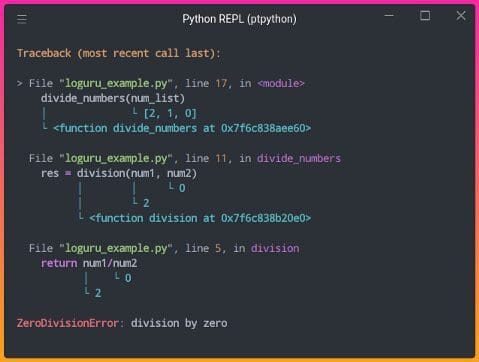
Image by Author
You might also want to visualize which lines of code are being executed and how many times they are executed in real-time:


GIF by Author
If so, this article will give you the tools to do exactly the above. Those 3 tools are:
- Loguru — print better exceptions
- snoop — print the lines of code being executed in a function
- heartrate — visualize the execution of a Python program in real-time
And all it takes to use these tools is one line of code!
Loguru — Print Better Exceptions
Loguru is a library that aims to make logging in Python enjoyable. Loguru provides many interesting functionalities, but one functionality that I found to be the most helpful is the ability to catch unexpected errors and display which value of a variable causes your code to fail.
To install Loguru, type
pip install loguru
To understand how Loguru can be useful, imagine that you have 2 functions division and divide_numbersand the function divide_numbers is executed.
| from itertools import combinations | |
| def division(num1: int, num2: int): | |
| return num1/num2 | |
| def divide_numbers(num_list: list): | |
| “””Division of 2 numbers in the number list “”” | |
| for comb in combinations(num_list, 2): | |
| num1, num2 = comb | |
| res = division(num1, num2) | |
| print(f”{num1} divided by {num2} is equal to {res}.”) | |
| if __name__ ==‘__main__’: | |
| num_list = [2, 1, 0] | |
| divide_numbers(num_list) |
Note that combinations([2,1,0], 2) returns [(2, 1), (2, 0), (1, 0)] . After running the code above, we get this error:
2 divided by 1 is equal to 2.0.
Traceback (most recent call last):
  File "loguru_example.py", line 17, in <module>
    divide_numbers(num_list)
  File "loguru_example.py", line 11, in divide_numbers
    res = division(num1, num2)
  File "loguru_example.py", line 5, in division
    return num1/num2
ZeroDivisionError: division by zero
From the output, we know that the line return num1/num2 is where the error occurs, but we don’t know which values of num1 and num2 cause the error. Luckily, this can be easily tracked by adding Loguru’s logger.catch decorator:
| from loguru import logger | |
| from itertools import combinations | |
| def division(num1: int, num2: int): | |
| return num1/num2 | |
| @logger.catch # Add this to track errors | |
| def divide_numbers(num_list: list): | |
| for comb in combinations(num_list, 2): | |
| num1, num2 = comb | |
| res = division(num1, num2) | |
| print(f”{num1} divided by {num2} is equal to {res}.”) | |
| if __name__ ==‘__main__’: | |
| num_list = [2, 1, 0] | |
| divide_numbers(num_list) | |
Output:
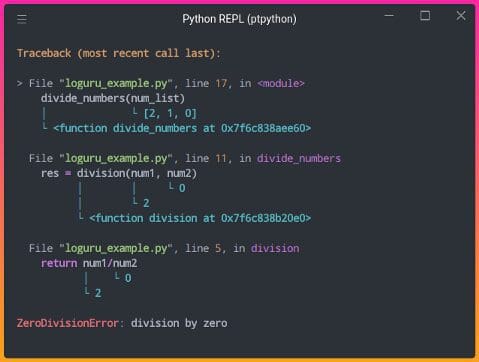
Image by Author
By adding logger.catch, the exceptions are much easier to understand! It turns out that the error occurs when dividing 2 by 0.
snoop — Print the Lines of Code being Executed in a Function
What if there is no error in the code, but we want to figure out what is going on in the code? That is when snoop comes in handy.
snoop is a Python package that prints the lines of code being executed along with the values of each variable by adding only one decorator.
To install snoop, type:
pip install snoop
Let’s imagine we have a function calledfactorial that finds the factorial of an integer.
| import snoop | |
| def factorial(x: int): | |
| if x == 1: | |
| return 1 | |
| else: | |
| return (x * factorial(x–1)) | |
| if __name__ == “__main__”: | |
| num = 5 | |
| print(f”The factorial of {num} is {factorial(num)}“) |
Output:
The factorial of 5 is 120
To understand why the output of factorial(5) is 20 , we can add snoop decorator to the function factorial .
| import snoop | |
| @snoop | |
| def factorial(x): | |
| if x == 1: | |
| return 1 | |
| else: | |
| return (x * factorial(x–1)) | |
| if __name__ == “__main__”: | |
| num = 5 | |
| print(f”The factorial of {num} is {factorial(num)}“) |
Output:

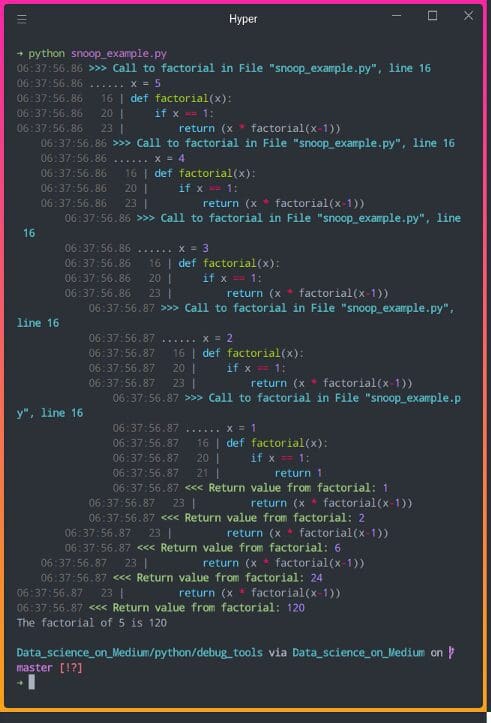
Image by Author
In the output above, we can view the values of the variables and which lines of code are executed. Now we can understand how recursion works much better!
heartrate — Visualize the Execution of a Python Program in Real-Time
If you want to visualize which lines are executed and how many times they are executed, try heartrate.
heartrate is also created by the creator of snoop. To install heartrate, type:
pip install heartrate
Now let’s add heartrate.trace(browser=True) to our previous code. This will open a browser window displaying the visualization of the file where trace() was called.
| import heartrate | |
| heartrate.trace(browser=True) | |
| def factorial(x): | |
| if x == 1: | |
| return 1 | |
| else: | |
| return (x * factorial(x–1)) | |
| if __name__ == “__main__”: | |
| num = 5 | |
| print(f”The factorial of {num} is {factorial(num)}“) |
A new browser should pop up when you run the code above. If not, go to http://localhost:9999. You should see the output like below:

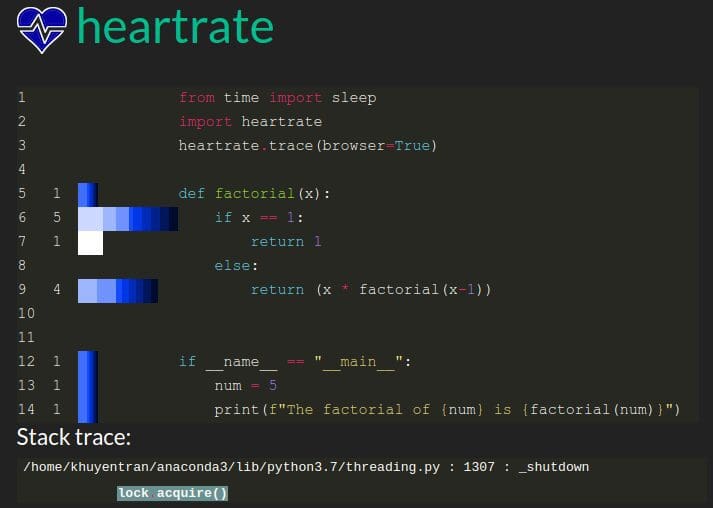
Image by Author
Cool! The bars show the lines that have been hit. The longer bars mean more hits, lighter colors mean more recent.
From the output above, we can see that the program executes:
if x==15 timesreturn 1oncereturn (x * factorial(x-1))4 times
The output makes sense since the initial value of x is 5 and the function is called repetitively until x equals to 1 .
Now let’s see what it is like to visualize the execution of a Python program in real-time using heartrate. Let’s add sleep(0.5) so that the program runs a little bit slower and increase num to 20 .
| import heartrate | |
| from time import sleep | |
| heartrate.trace(browser=True) | |
| def factorial(x): | |
| if x == 1: | |
| return 1 | |
| else: | |
| sleep(0.5) | |
| return (x * factorial(x–1)) | |
| if __name__ == “__main__”: | |
| num = 20 | |
| print(f”The factorial of {num} is {factorial(num)}“) |
GIF by Author
Awesome! We can see which lines of code are being executed and how many times each of them has been executed in real-time.
Conclusion
Congratulations! You have just learned 3 tools to track and visualize the execution of your Python code.